Custom plant presets
Save and reuse your own plant configuration
For plants not in the built-in list you create your own preset — it stores all watering values and can be reused for any zone. You can create up to 4 custom presets.
WHAT A PRESET STORES
- Name
- Target moisture (%) — the value the zone should hold
- Tolerance (±%) — applies upward AND downward: ±10% gives a comfort range 20 percentage points wide, so 50–70% at a target of 60%
- Pump duration (sec) and pause between bursts — both apply to Automatic; in AI mode the AI works out the amounts itself and only keeps the pause after the learning phase
- Max daily amount (100 to 50000 ml)
1Open the preset area
The path differs between app and device — the result is the same.
In the app
Tap the zone card on the home screen, scroll down on the zone page to "Choose plant" and tap it.
On the device
Open the zone settings and call up the plant presets there.
2Create a new preset
In the "Custom presets" section tap "Create own preset" — on the device the buttons are called "Create manually" and "From zone" (copies the zone's name and values). If 4 custom presets already exist, one has to be deleted first in the app; on the device a new preset then replaces the last one.
3Name it
Enter a short, unique name (max 24 characters).
4Set target moisture and tolerance
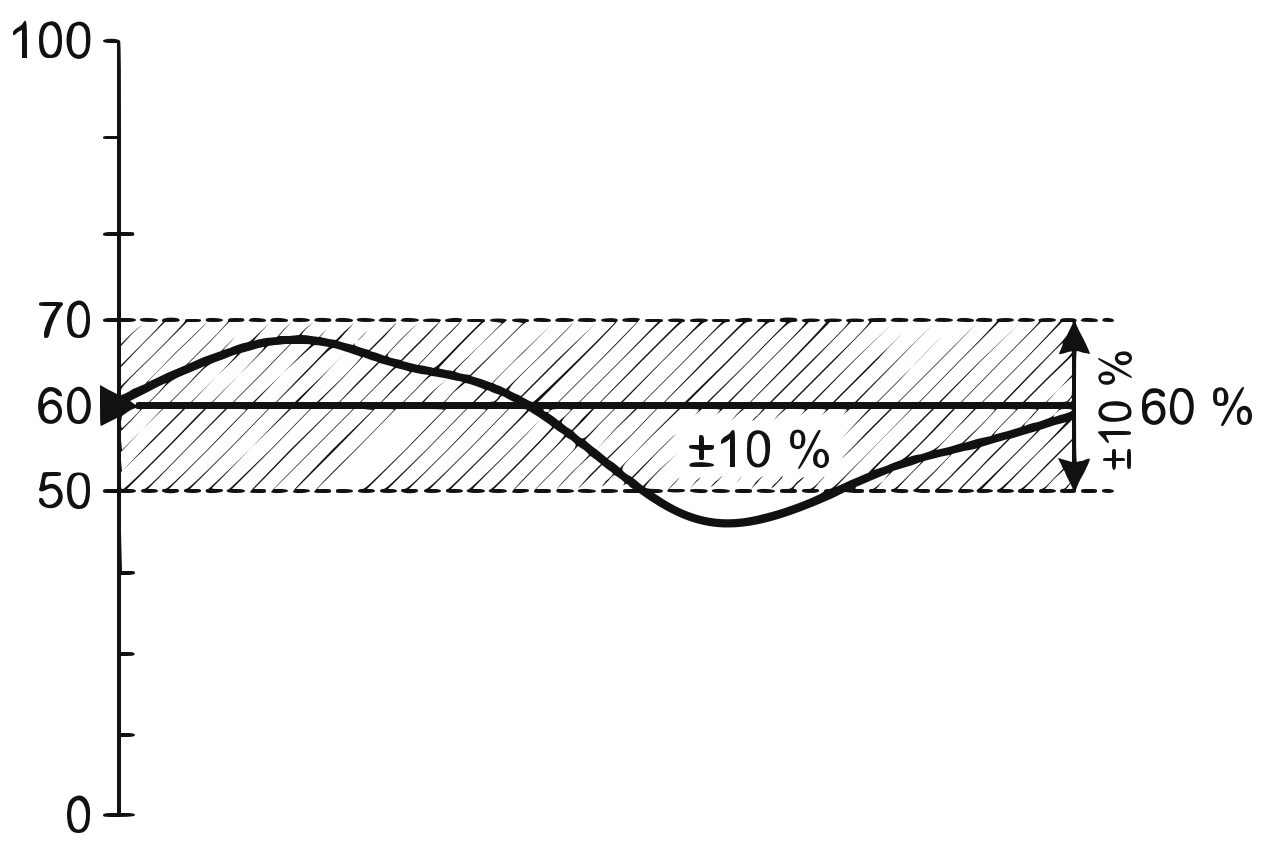
Target moisture as a line, tolerance as a band around it Enter the target moisture (e.g. 60%) and the tolerance (e.g. ±10%). That gives the comfort range — here 50–70%.
Tip
The tolerance does not control the watering, it controls the health score: that measures how much time the zone spends inside this range. Watering follows the target moisture. Unsure about the values? Use a similar plant from the built-in list as a starting point.
5Set pump duration and pause
Pump duration per burst (e.g. 7 sec) and minimum pause between two bursts. For the pause, 20 to 30 min is a good guide (1200 to 1800 sec): 20 min for small pots, 30 min for large pots, beds and anything you are not sure about. Water needs time to spread through the pot — the sensor often reaches its highest reading only after half an hour, sometimes only after more than two hours. The built-in presets set a suitable pause.
Tip
Short and frequent is better than long and infrequent. If the pause is too short, the sensor only measures the "puddle" around the distributor and the zone waters again even though there has long been enough water. In our test, a zone with a 6 min pause kept watering up to its daily limit before the sensor responded.
Caution
Both values apply to Automatic. If the zone runs in AI mode, the AI calculates amount and timing itself and only keeps the pause after the learning phase; in schedule mode only the configured times count.
6Set a daily limit
The maximum water per day is a safety net, not a target: it should never be reached in normal operation, but it prevents the pot from being flooded if a sensor or a setting goes wrong.
How to find a usable value: let the zone run for a few days and check the statistics for what it actually consumes — then set the limit about 50–100% above that. The pot itself is the second boundary: never more than it can absorb at once without water running out at the bottom.
Allowed are 100 to 50000 ml – there is always a limit.
7Save
Tap "Save" in the app, "Save preset" on the device. The preset then appears under "Custom presets" and is available to all zones.
Caution
In the app, saving alone does not change anything in your zone yet — a new preset is NOT assigned automatically there. To use it, select it afterwards in the desired zone under "Choose plant" and apply it. On the device, a manually created preset is applied to the currently selected zone right away.
EDIT A PRESET
In the app: zone detail → "Choose plant" → tap your preset → change values → save. Custom presets cannot be edited on the device. Important: changes take effect only when you apply the preset to a zone again — already configured zones keep their current values.
DELETE A PRESET
In the app, tap the trash icon in the preset's row; on the device, the trash button in the row — then confirm. Zones using the preset keep their values — only the link is lost.
TIPS FOR GOOD VALUES
- Start with estimates, watch for 1–2 weeks, then adjust.
- Do not set the tolerance too tight (±8–15% is a good range). It does not influence how often watering happens — it only defines how strictly the health score judges. A very tight band makes a perfectly healthy zone look bad.