AI mode
Enable the self-learning watering and let it learn
AI mode is fully automatic watering: a self-learning algorithm that adapts to your plant and your substrate — to exactly this pot, this soil, this spot. You only set the target moisture, the AI takes care of the rest.
TO DO SO IT OBSERVES:
- Drying rate — how fast does the soil lose moisture (%/hour)?
- Water absorption — how much moisture increase does 1 ml of water cause?
- Day and night rhythm — in the evening and at night the soil dries more slowly than in the midday sun.
- Consumption over time — how much this zone actually needs per day.
- Plant stage — seedling, growth, bloom, harvest and rest have completely different needs.
From this it calculates when and how much to water — and waters proactively, before the plant gets too dry.
Everything learned is stored permanently on the device and survives a restart and a firmware update. The longer the AI runs, the more accurate it gets.
1Open the zone
The path differs between app and device — the result is the same.
In the app
Tap the zone card on the home screen.
On the device
Tap the zone card as well, then go to "Settings" — the AI menu lives inside the zone settings.
2Activate AI watering
In both cases the previous mode is deactivated automatically.
In the app
In the zone detail view tap "AI watering" under "Watering mode".
On the device
At the top of the zone settings, in the mode bar, tap "AI mode" — it always opens the AI menu. There press the big "Enable AI" button.
3Enter the pot size
When you switch it on for a single plant, the app asks for the pot's volume (for a bed or several plants it plays no role). It is optional, but it saves days. On the device you set it in the AI menu with the "Pot" control.
The reason: the sensor measures moisture in percent. How many milliliters one percentage point is depends on the volume — and no sensor can measure that. Without the figure the AI starts at 40 ml: right for a medium pot, almost nothing for a 20-liter container.
As a rule of thumb the device assumes about 10 ml per liter of pot volume. A 5-liter pot therefore gets 50 ml per watering, a 10-liter pot 100 ml.
In the app
Asked when you switch the AI on. To change it later: zone detail view → "Plant settings" → "Pot size".
Tip
A rough guess is enough. It is about the order of magnitude, not accuracy — the AI corrects itself from there.
4Set target moisture and tolerance
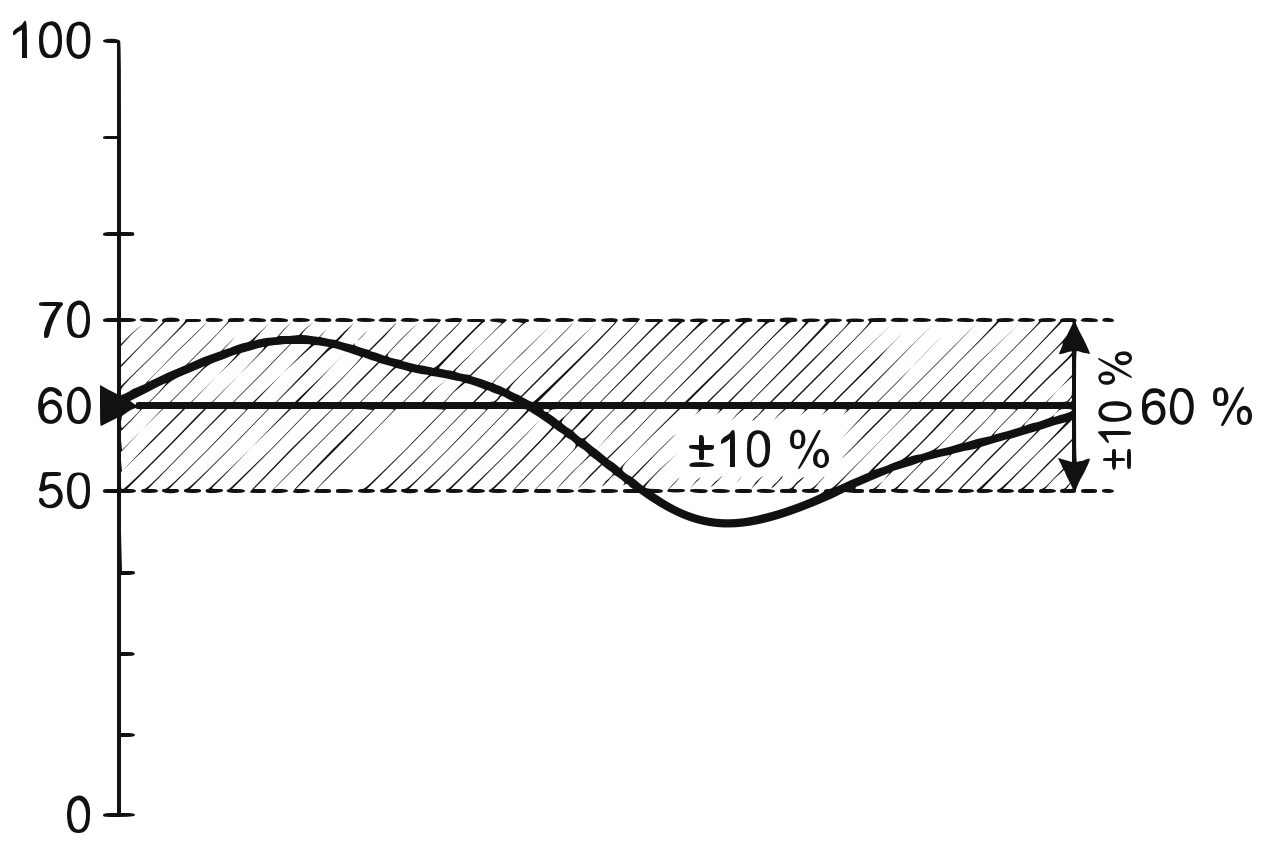
Target moisture as a line, tolerance as a band around it Example: target 60%, tolerance ±10% → the AI holds the soil at 60%; 50–70% is the comfort range the health score is measured against.
In the app
in the plant settings.
On the device
directly in the AI menu — set target moisture and tolerance there with − and + in 1% steps; the resulting range is shown right below.
Tip
The plant preset already provides a sensible target. The dashboard always shows "Target: X%" on the zone card.
5Check the plant stage
Make sure the correct stage is set (seedling, growth, bloom, harvest, rest) — it feeds into the AI calculation.
In the app
in the plant settings.
On the device
either directly in the AI menu with "<" and ">", or via "Set stage" in the zone detail view.
6Let it learn
The AI typically needs 5–10 watering cycles to learn reliable values. During that time it waters with careful defaults — your plant is supplied normally.
7Watch the learning progress
Only the app shows the learning progress in percent. On the device you can see whether the AI is still learning, and its prediction.
In the app
The "AI insights" card in the zone detail view shows the learning progress in percent and the recommendation for the next watering.
On the device
Tap "Insights" in the AI menu. The page shows whether the AI is still learning or already active, what it is doing right now and the prediction for the next watering. It refreshes itself every few seconds.
8Know the safety limit
AI mode also respects a maximum daily amount (default: 1500 ml per zone). You can adjust it in the app in the plant settings, on the device in the zone settings. It protects against overwatering if, say, a sensor reports wrong values.
See also: Understanding & checking sensors
TIPS FOR GOOD LEARNING RESULTS
- Place the sensor well — the AI is only as good as its measurements; an air gap or poor soil contact distorts everything (see "Understanding & checking sensors").
- Keep the environment constant — moving the plant or changing the soil confuses the learned values.
- Keep the plant stage current.
- Patience: watering is deliberately careful at first.
WHEN AN AI RESET MAKES SENSE
- New plant in the same pot
- Soil renewed or pot size changed
- Sensor replaced
NO reset needed for stage changes (e.g. growth → bloom) — the AI adapts by itself.
Reset in the app: zone detail → AI insights → "Reset learning table".
Reset on the device: zone settings → "AI mode" → "Insights" → "Reset learning".