Home screen widget
Zones and tank at a glance — right on your home screen
The HydroCommander widget shows you without opening the app: all four zones with moisture, condition and mode, the tank level with remaining amount, and the time of the last refresh. Tapping a zone jumps straight into its detail view — and you can even report the tank as refilled directly from the widget.
Available on Android.
1Add the widget
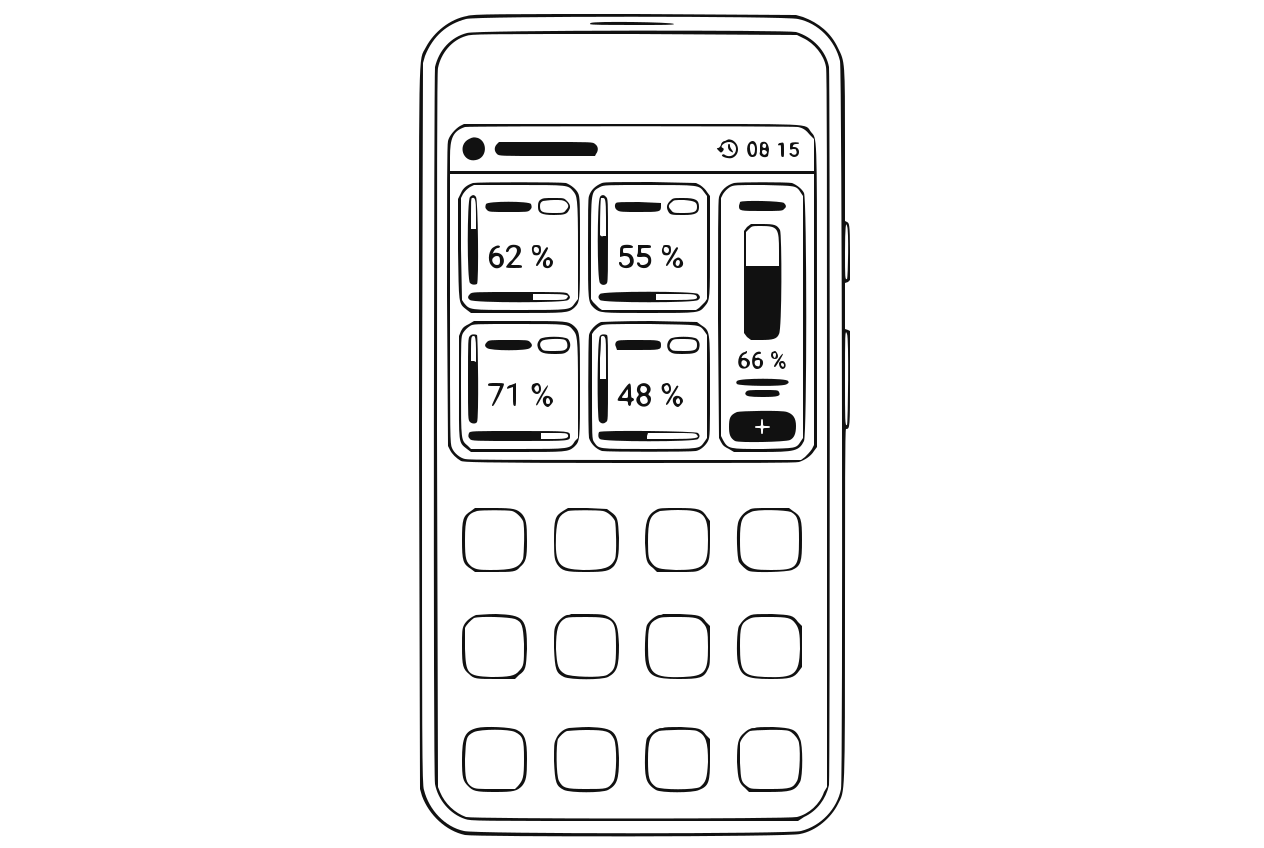
Widget on the home screen Long-press an empty spot on the home screen → "Widgets" → pick HydroCommander and place it.
2Read the widget
Each zone tile shows: a color stripe and condition text, name, mode (AUTO/AI/PLAN/OFF), big moisture % and a fill bar. On the right the tank with percent and remaining liters. On top: device name and "⟳ time" of the last refresh.
The condition matches the health score on the app's zone card exactly: "Ideal" and "Good" are green, "Average" is yellow, "Poor" is red.
3Interact directly
Tap a zone tile → opens the zone detail view. Refilled the tank? Tap "+" and confirm with the second safety tap — the tank level is set to full without opening the app.
4Live data even with the app closed (optional)
By default the widget shows the state from your last app visit. For automatic refresh about every 30 minutes: in the app enable Settings → Home screen widget → "Background refresh".
Tip
Background refresh uses Wi-Fi or — if enabled — cloud remote access, so it also works away from home. It uses a little battery.
5Judge the freshness
The "⟳" time at the top right shows how fresh the data is. If it turns yellow, the data is older than 45 minutes — e.g. because the device is currently unreachable.