Remote access (cloud)
Control from anywhere — optional and always revocable
By default HydroCommander works locally on your Wi-Fi: readings and control stay in your home network. Only the time synchronisation, the weather query (if switched on), the update check and, at your request, the location search reach the internet. If you want to see and control your system while away, you can enable cloud remote access per device.
HOW IT WORKS: Your HydroCommander opens an encrypted connection to the HydroCommander server. When you are away, the server forwards your app commands to the device. At home the app still talks to the device directly — the cloud is only the detour for when you are away.
PRIVACY: No account is needed. Only device status and your control commands are transferred; the local device access token never leaves your home network. Remote access can be switched off again with one tap at any time.
1Open the cloud section
You set up the cloud in the app. There is no menu for it on the device — there, only an indicator in the settings shows the status.
In the app
Settings → Cloud (expand the section). Requirement: the app is currently connected to the device locally.
2Enable the cloud
The server address is already filled in. Tick the box to accept the cloud terms of use and the data transfer — the links below it lead to the terms and to the privacy policy. Then tap "Enable cloud" — the app registers the device with the server and passes the credentials securely, directly to your device. It is only done once the device has connected to the server; that takes up to half a minute. If it does not work, the app undoes everything and tells you why.
3Check the connection
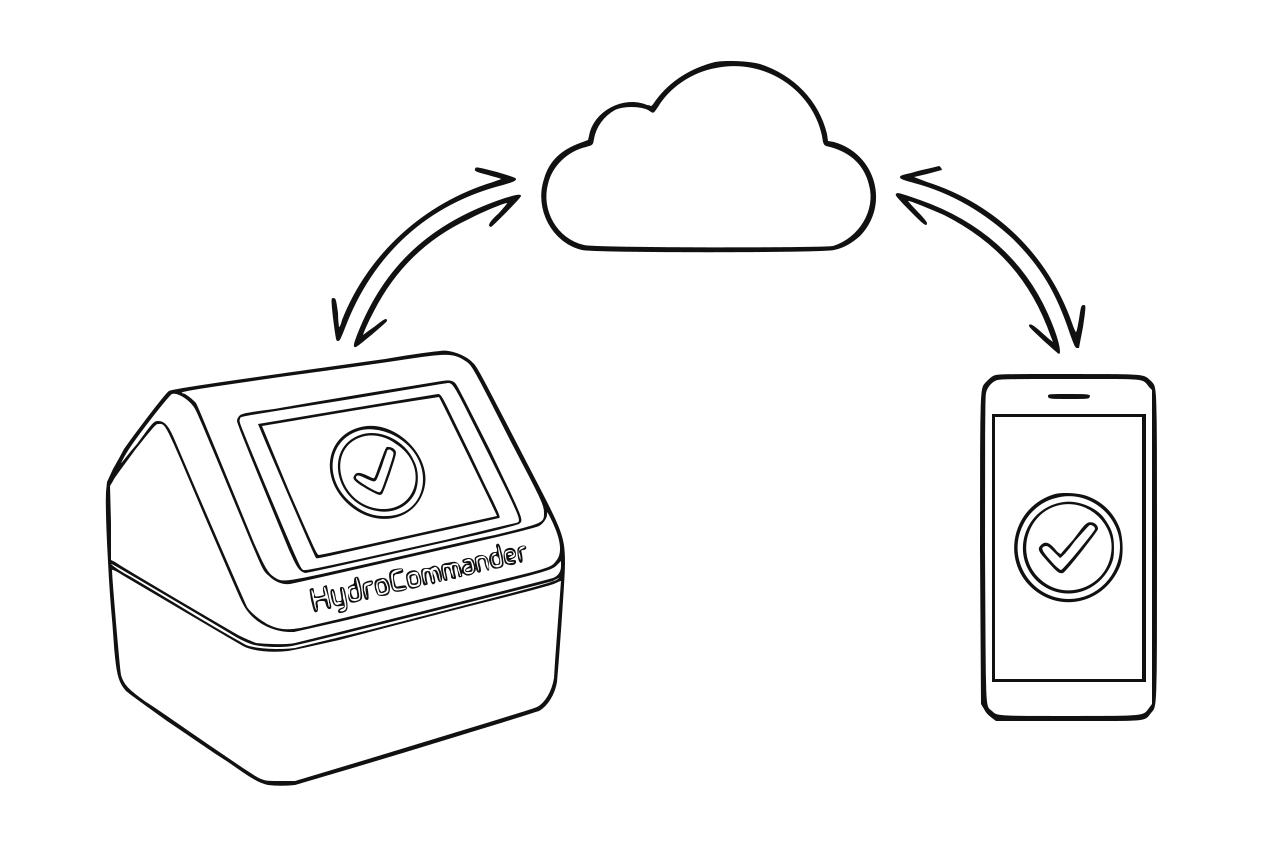
The path the data takes for remote access On the device display the cloud indicator in the settings shows the status: gray = off, orange = connecting, green = connected.
4Test from the road
Switch off Wi-Fi on your phone (mobile data on) and open the app. Dashboard, statistics and control now work through the cloud — automatically, no switching needed.
Tip
Responses can take 1–2 seconds longer than at home — that is normal.
5Switch off when needed
Settings → Cloud → "Remove cloud pairing". The app first deletes the device's entry on the server, then the device drops the connection and works purely locally again.
GOOD TO KNOW
- Without the cloud everything local keeps working — watering, display, app on the home network.
- Firmware updates (OTA) are NOT possible via the cloud for security — home network only.
- If the server is down or the device offline, the app clearly shows it; watering on the device continues independently.
- Remote access is the perfect vacation companion: check the tank, read events, water manually if needed.